Deploy mechanics · Virtual desktops
Noise suppression in VDI: Citrix, Azure Virtual Desktop and Windows 365

Short answer: install noise suppression wherever the call's audio is actually processed. With optimized Teams on Citrix, Azure Virtual Desktop or Windows 365, that is the endpoint in front of the user, not the session host, so a suppression layer belongs on the thin client or laptop. Only when calls fall back to plain audio redirection does the microphone stream land inside the virtual machine, and only then can a layer installed in the image touch it. Everything below is the long version of that one sentence, with the vendor statements that support it.
The one question: where is the media processed?
Every VDI audio conversation goes wrong in the same place. Someone installs a suppression client in the golden image, tests it from a desk, and declares victory. Then the first optimized Teams meeting runs and nothing changes, because the audio in that meeting never passed through the image at all.
Virtual desktops run calls in one of two shapes, and the vendors describe both plainly:
- Optimized (offloaded) media. The meeting app's user interface runs in the session, but the media engine runs on the endpoint. Microsoft's Azure Virtual Desktop documentation says media optimization supports calling and meetings "by redirecting it to the local device". Citrix describes the same split for its HDX optimization: the media engine, HdxRtcEngine, sits on the endpoint and handles the offloaded media.
- Generic redirection. The endpoint simply ships the raw microphone signal up the display protocol into the session, and the app inside the virtual machine does the audio work. Microsoft's guidance for unoptimized Teams on AVD is to set the RDP properties
audiocapturemode:i:1andaudiomode:i:0so the local mic and speakers are redirected.
The consequence for an admin is mechanical. A noise-suppression layer works by sitting in the microphone path. In the first shape that path never leaves the endpoint; in the second it ends inside the session. Pick the install location after you know which shape each user population actually gets, not before.
Two audio paths, two install locations
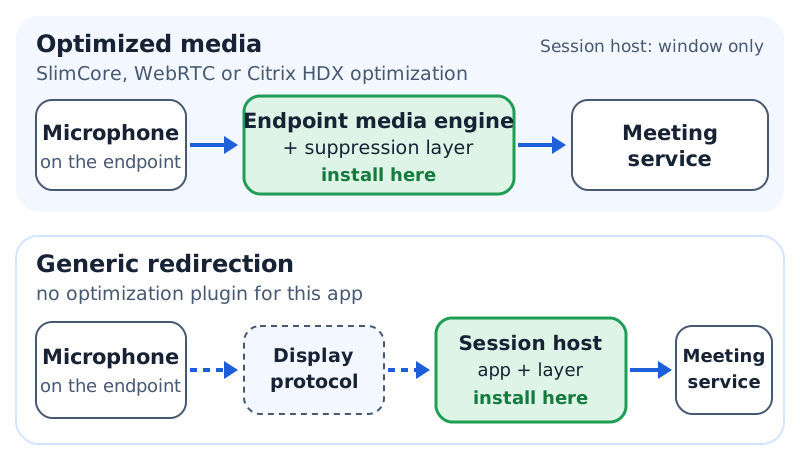
Drawn from Microsoft Learn (Teams on Azure Virtual Desktop) and Citrix's optimized-Teams documentation, both read 18 October 2026.
Optimized Teams media: suppression goes on the endpoint
When optimization loads, the endpoint is a full participant in the call. Microsoft says so in its verification steps for AVD: once media optimizations load, "the audio devices and cameras available locally will be enumerated in the device menu", and if the menu shows Remote audio instead, optimization did not load. That device list is the cleanest test you have. A virtual microphone installed on the endpoint should appear in it next to the physical headset; a virtual microphone installed in the image will not, because the optimized engine is not looking at the image's devices.
Two pieces of Microsoft's own suppression move with the engine. Microsoft's page on the new VDI solution for Teams, the SlimCore architecture (dated 15 October 2026 when we read it), lists noise suppression as available on the new optimization and, for the older WebRTC-based optimization, "Yes (AVD)". Voice isolation, the profile-based feature that removes other people's voices, is listed as available on the new optimization only, with a footnote that enrollment relies on the VDI provider's camera and microphone redirection. If your fleet is still on WebRTC optimization, voice isolation is not there yet whatever the policy says.
The new engine also needs network reach you might not expect. The same Microsoft page lists endpoint ID 184 (*.cloud.microsoft, *.static.microsoft, *.usercontent.microsoft) as required from the user's device and notes it is "Used for Ringtones, Noise Suppression, and other Models". On a locked-down thin client network, Teams' built-in suppression can quietly depend on a proxy rule nobody wrote.
Consequence for licensing: if suppression has to live on the endpoint, the seat count follows people and devices, not session hosts. A pooled host serving forty users does not give you one install for forty seats. Price it on the costs page with the endpoint count, not the host count.
Generic audio redirection: suppression inside the session
Plenty of calling software is never optimized in VDI: web softphones, CRM-embedded dialers, older desktop clients, anything without a vendor plugin for your broker. For those apps the microphone arrives in the session as a redirected device, and a suppression layer installed in the image can sit between that device and the app.
Krisp documents exactly this option. Its help-centre article "How is Krisp deployed in VDI?" lists two installation methods: "Directly on the VDI", or "On the endpoint, with the Krisp drivers passed through to your VDI environment." For the in-session route it publishes VM sizing: 2 vCPU minimum and 4 vCPU recommended, with Azure Standard_B2ms as the minimum and Standard_B4ms as the recommendation, and 2 vCPU with 2 GB RAM on premises at minimum. Krisp adds that the benchmark assumed a WebRTC softphone and a web-based CRM, and tells you to benchmark anything heavier yourself. Read that as a floor, not a sizing guide for a busy multi-session host.
The catch is shared hosts. Krisp's compatibility table marks Citrix multi-user sessions as supported only with an asterisk: "Multi-user sessions require installing the Krisp app on the endpoint." So the in-session route is a single-session desktop route. On pooled multi-session hosts, Krisp sends you back to the endpoint.
Citrix specifics: HdxRtcEngine and the AEC key
Citrix runs two optimization generations side by side, and both put media on the endpoint. Under what Citrix calls VDI 1.0 optimization, HdxRtcEngine ships inside Citrix Workspace app. Under VDI 2.0, Microsoft's SlimCore engine is fetched by a Microsoft Teams VDI plug-in, which Citrix Workspace app for Windows can install at setup with CitrixWorkspaceApp.exe /installMSTeamsPlugin. Microsoft's page adds that the plug-in can also be pushed on top of a supported Workspace app with SCCM or Intune, and that Citrix sites must add the Teams channel to the Studio policy Virtual channels allow list.
One registry value matters for anyone stacking a third-party suppression layer on the endpoint. Citrix documents that echo cancellation inside HdxRtcEngine can be switched off "to troubleshoot audio performance issues or compatibility with peripherals that have built-in AEC capabilities":
HKEY_CURRENT_USER\SOFTWARE\Citrix\HDXMediaStream
  EnableAEC  REG_DWORD  0   (0 = AEC off, 1 = on)
; no value present = HdxRtcEngine keeps AEC on
Do not reach for it by default. Two echo cancellers in series can fight, but so can zero. Leave the key absent in your pilot ring, and only test 0 on a handful of endpoints if users report pumping or swallowed syllables with the suppression layer active. Citrix also notes that from Workspace app for Windows 2503 the audio subsystem inside HDXRTCMediaEngine was replaced, so a complaint from a ring on an older Workspace build may simply be a version problem.
AVD and Windows 365 specifics
Microsoft treats the two as one target for Teams media. On the session host, optimization still hinges on one registry value, set per Microsoft Learn under HKLM\SOFTWARE\Microsoft\Teams:
New-Item -Path "HKLM:\SOFTWARE\Microsoft\Teams" -Force
New-ItemProperty -Path "HKLM:\SOFTWARE\Microsoft\Teams" `
  -Name IsWVDEnvironment -PropertyType DWORD -Value 1 -Force
On the client side, SlimCore support arrives with the client itself: Microsoft lists Windows App for Windows 1.3.252 or later and the Remote Desktop client 1.2.5405.0 or later as bundling the plug-in. Its own verification signal is a banner reading AVD SlimCore Media Optimized or AVD Media Optimized. Tenant-side, Set-CsTeamsVdiPolicy -VDI2Optimization can keep specific users off SlimCore, which is useful for holding a test group on one architecture while you compare.
Now the uncomfortable part for a third-party layer. Krisp's VDI table does not mention Azure Virtual Desktop or Windows 365 at all. The nearest row, "Windows Remote Desktop Connection", is marked Not supported. That row may describe the classic RDP client rather than AVD's Windows App, and a guess from us would be worth nothing to your change board. Until Krisp puts AVD and Windows 365 in writing, treat the in-session route on those platforms as unconfirmed and the endpoint route as the one to pilot.
Platform, media mode, install location
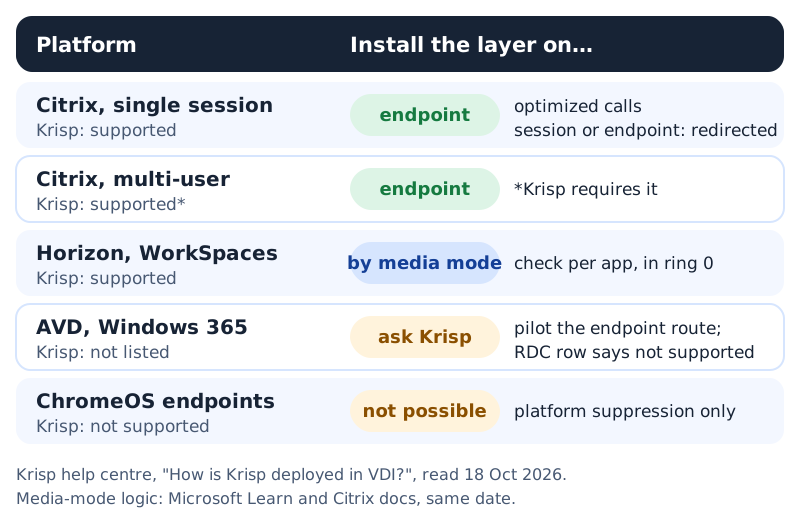
Rows from Krisp's "How is Krisp deployed in VDI?" article; media-mode logic from Microsoft and Citrix docs. All read 18 October 2026. Horizon is now sold under the Omnissa name.
Thin clients and the endpoint OS
If suppression belongs on the endpoint, the endpoint's operating system decides whether you can install it. Krisp's thick- and thin-client table lists Windows 10, eLux and macOS as supported, and ChromeBook as not supported. That last row rules out the in-endpoint route for any Chromebook population, so those users either get generic redirection into a single-session desktop with an in-session layer, or they get the meeting platform's own suppression and nothing else.
Locked-down Linux thin-client OSes are a separate question that depends on the OS vendor. Stratodesk announced on 13 June 2024 that it had integrated Krisp's noise, voice and echo cancellation into its NoTouch OS; Stratodesk now presents itself as part of IGEL. A partnership announcement is not a support matrix, so ask the OS vendor for the current build that carries the integration, and test it in ring 0 like any other package.
Windows thin clients carry their own trap from the Microsoft side. Microsoft's SlimCore page notes that SlimCore is delivered as MSIX packages and that Group Policy, AppLocker or App Control rules which block MSIX installs will stop it registering. If your thin-client image blocks non-admin package installs, you may be disabling Teams' built-in suppression along with everything else in the new engine.
Pilot checklist for VDI
Run this inside the normal ring structure from the company-wide playbook; the VDI-specific additions are about proving which path each call took.
Ring 0 exit criteria, VDI edition
- For each user population, you have recorded which media mode they get: SlimCore, WebRTC optimization, HDX VDI 1.0, or plain redirection. Check the banner or the device menu, not the design document.
- The suppression layer appears as a selectable microphone in an optimized meeting from a real endpoint, and in a non-optimized app inside a single-session desktop if you use that route.
- At least one Chromebook or other unsupported endpoint is in the ring, so you have seen what those users actually get.
- Endpoint packages for the suppression client and the Teams plug-in deploy through the same tool, and an uninstall has been run once.
- Proxy and firewall rules cover Microsoft endpoint ID 184 from the endpoint network, and the suppression vendor's domains from wherever the client runs.
- The Citrix
EnableAECvalue is absent on every pilot endpoint unless you are deliberately testing it.
Then measure. The baseline steps in the pilot plan apply unchanged, with one VDI caveat: compare optimized and redirected users separately, because they are two different audio stacks that happen to share a desktop.
Questions admins ask about VDI audio
Can one install on the session host cover every user on it?
Not for optimized Teams media, which is processed on each endpoint. For apps using generic redirection on a single-session desktop, an in-session install can work; on Citrix multi-user sessions Krisp requires the endpoint install anyway.
Does Teams' own noise suppression work in VDI?
Microsoft lists it as available on the new SlimCore optimization and, on WebRTC optimization, for AVD. Voice isolation is listed for the new optimization only. Check which one each user is on before promising either.
Is Krisp supported on Azure Virtual Desktop?
Krisp's VDI article, read 18 October 2026, does not name AVD or Windows 365, and it marks Windows Remote Desktop Connection as not supported. Ask Krisp for a written answer before you plan around the in-session route there.
What size VM does an in-session install need?
Krisp's published floor is 2 vCPU, with 4 recommended, benchmarked against a WebRTC softphone and a web CRM. Size multi-app desktops from your own ring 0 numbers, not from that line.
Should I disable Citrix's echo cancellation when adding a suppression layer?
Not by default. Citrix documents the EnableAEC value for troubleshooting and for peripherals with their own AEC. Change it only on endpoints where you can hear a problem, and record the change in the ticket.

Prove the path before you buy the seats
Seven trial days, with no card asked for, are enough to put the endpoint client on three device types and watch where it shows up in an optimized meeting. Past day seven, Krisp's list price for Core is $8 per seat monthly when committed for a year, rising to $16 without that commitment; Advanced is $15, or $30 uncommitted (pricing page, 18 October 2026). Nothing free follows the trial.
Declared plainly: RolloutDesk earns a referral fee if your organization licenses Krisp from this button, and your quote is unchanged. If your whole fleet is optimized Teams on SlimCore, try Microsoft's built-in suppression first; it costs nothing extra and this page would rather you knew that.
Related: the MSI and silent-install switches for the endpoint package, Intune and GPO & SCCM for pushing it, and the Teams policy levers that apply whichever path a call takes.